Convert your first file with Filee: a practical guide
Use a copy of one file, choose an offered target, then open the result before processing a folder.
On this page
Start with one file you can check
Filee converts files on your computer. It is a desktop application; this wiki does not accept uploads or convert files in the browser. Install it using the official packages first.
For a first attempt, make a copy of a small PNG or JPG in a folder you can write to. A familiar image gives you something concrete to inspect: dimensions, orientation, transparency and visual quality. Keep the original. A conversion that finishes successfully can still produce a file that is unsuitable for its destination.
Use the drop zone first
- Open Filee's Home screen and locate the drop zone.
- Drag your test file into it. Use one file initially so that the available output formats describe that file.
- Choose an offered target or preset. For a PNG source, JPG or WebP is a simple image example; choose a target that is actually offered in your installation.
- If Filee asks for a missing engine, open Settings, Engines and review that requirement. Download the needed engine from the app's documented workflow, then retry.
- Wait for completion and find the output. The documented default saves converted files beside the source, although presets can change the output folder and filename.
- Open the new file in the application that will use it. Check the content, rather than relying on the extension or a completion message.
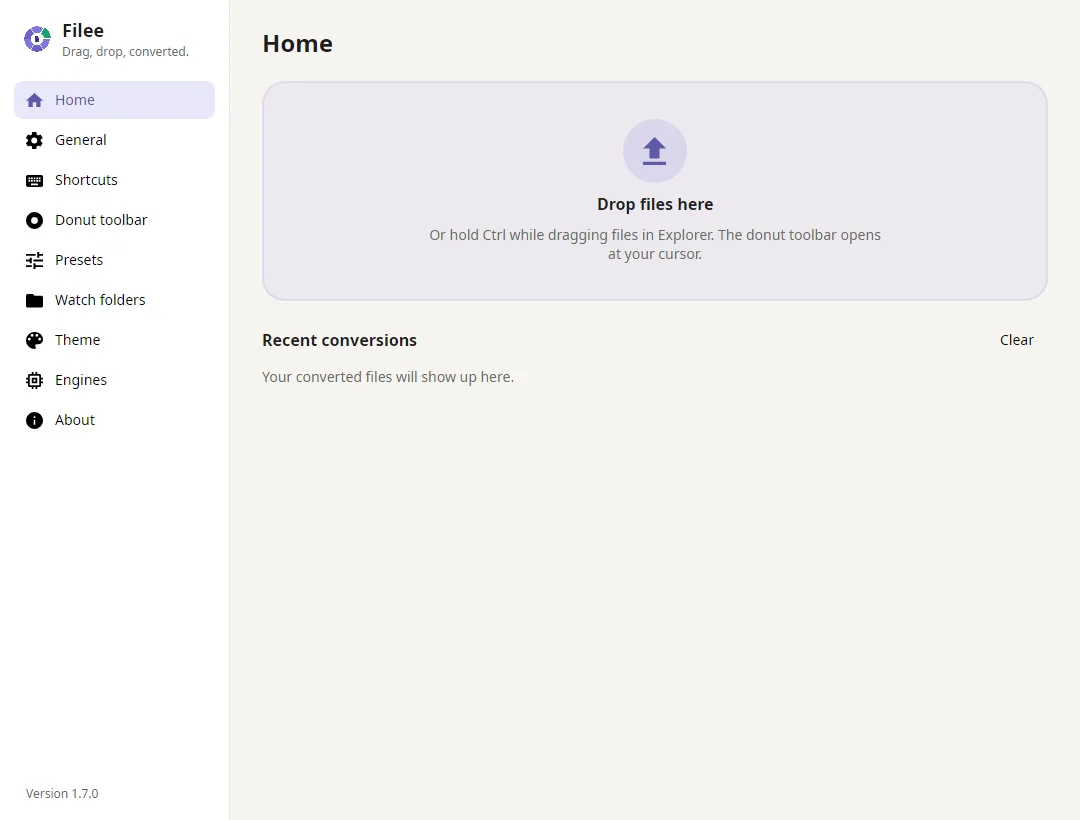
This is a documented workflow, not a recorded conversion made by this wiki. The official Home screenshot below shows the application's drop zone and recent conversions.
Try the format donut
Filee's other main entry is its circular format menu at the pointer. The official Windows demonstration holds Ctrl while dragging a file, then drops it onto a format slice. The menu offers formats that fit the input. Release the file on the target you intend to use.
Configured shortcuts and platform behavior can differ. Check the app's shortcut settings rather than assuming a Windows gesture works unchanged on a Mac. On Linux, global gestures require X11; Wayland users should use the drop zone or right-click menu. If dropping works inside Filee but a global drag does not, follow the gesture branch in troubleshooting.
Decide what a good result means
For an image, compare the output's pixel dimensions and orientation with your source. If transparency matters, choose a format that supports it. JPG does not preserve an alpha channel; converting a transparent PNG into JPG is a format choice with a visible consequence. Increasing quality after a lossy conversion cannot restore discarded source detail.
For a document, inspect page breaks, tables, equations and fonts. Filee can produce an editable file without recreating the original page design. PDF text extraction is not OCR, and the PDF-to-PowerPoint route creates page images on slides. The PDF guide helps select the appropriate route before you convert a large document.
For video or audio, check duration and playback in the intended player. A filename alone does not establish which codec the player can decode. These routes require FFmpeg; see engines if the target is unavailable.
Move to batches after the sample passes
Select several files only after you have checked one representative output. Filee supports parallel work, but a mixed group can have different compatible targets. Group similar sources when you need predictable results, and review any failures individually.
Settings, Toolbar lets you arrange the formats and presets for a file type. Presets can control quality, dimensions, PDF page choices, output folders and naming. Change one relevant option at a time so you can explain a difference in the output.
For repeated folder work, the command-line and watch-folder guide covers explicit output directories, collision handling and an inbox workflow. Avoid overwrite options until you have checked the output and have a separate source copy.
Why does an X demonstration use a different key?
An X demonstration by th2049 describes dragging with Shift, while Filee's official Windows quick start uses Ctrl and its Mac documentation uses Option. The gesture is configurable: a short social demonstration is not a reliable statement of your own installation's current shortcut.
Check Settings and test the Home drop zone first. If the internal drop zone converts the file but the global gesture does not open, you have separated conversion capability from desktop integration. Continue to the gesture branch of troubleshooting, rather than installing every engine.
Where did my new files go?
The global save folder and a preset's Output settings can change the beside-the-original default. A watched inbox uses a converted subfolder. Check output folders and safe retries before rerunning a job you believe is missing.
For a folder, select the contained files when using a GUI file conversion. Dropping the folder itself is an archive operation in the developer's documented example. Use the CLI's folder and recursive options when you want explicit traversal. That difference is especially useful when a seemingly simple batch unexpectedly offers ZIP instead of the image target you wanted.